Troubleshooting guide
Moonlight Controller Not Working in Stream: Fix Input Delivery
Category: Game Streaming
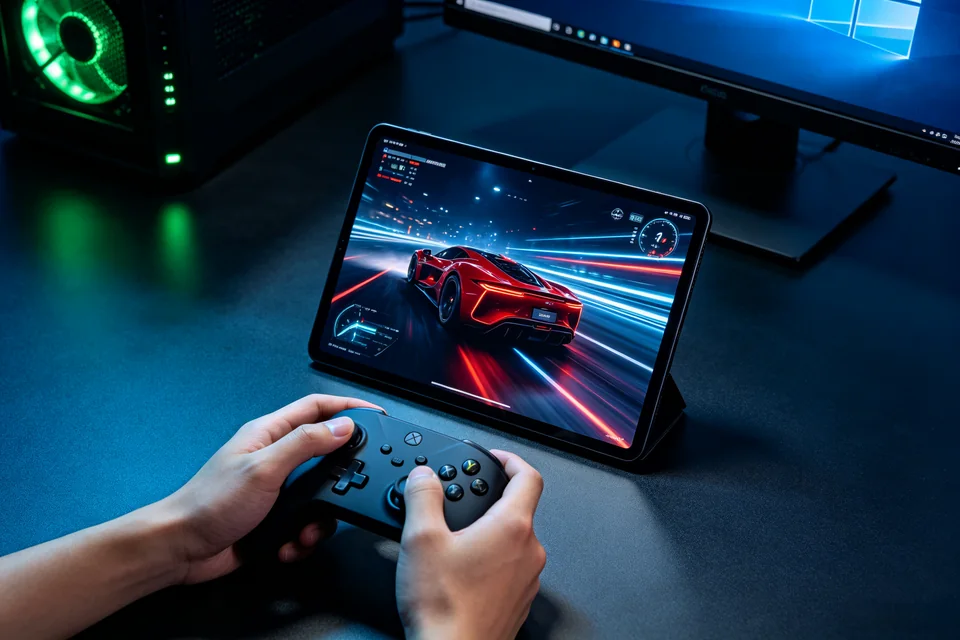
You’re streaming from Sunshine to Moonlight, the video plays fine, but your controller presses do nothing on the host. This guide fixes that specific input-delivery failure.
Check the controller in Moonlight’s input settings
Open Moonlight’s settings and find the input or controller section. Confirm your controller is detected and enabled. If it’s listed but disabled, enable it. If it’s not listed at all, reconnect it to the client device and reopen Moonlight. A controller that appears here but still doesn’t work points to a host-side issue; one that never appears points to the client or connection.
Verify the host sees the controller
On the Sunshine host, open the operating system’s game controller panel (for example, “Set up USB game controllers” on Windows). If the controller isn’t present there, Sunshine cannot forward it. Reconnect the controller directly to the host, then restart Sunshine. If it appears only after a direct connection, the client-side forwarding is the problem.
Test input with a simple target
Start a stream and open a basic input tester or a text field on the host. Press buttons and move sticks. If the tester responds, the controller path is restored. If nothing registers, close the stream, restart Sunshine, and reconnect. This is your verification test: input must reach the host application, not just the Moonlight overlay.
Rollback if a change breaks input
If you recently changed Sunshine’s input settings or updated either app, revert that change and retest. Keep a note of the working configuration so you can restore it.
If the controller still doesn’t work after these checks, the issue may be in Sunshine’s input configuration.
Ask for help with your setup details. For many users, the fix for moonlight controller not working is simply re-enabling the controller in Moonlight and restarting Sunshine.